
You can add, activate, and manage the email addresses associated with your Hsoub account. You can also choose which email address to use as your primary address.
Add an Email Address
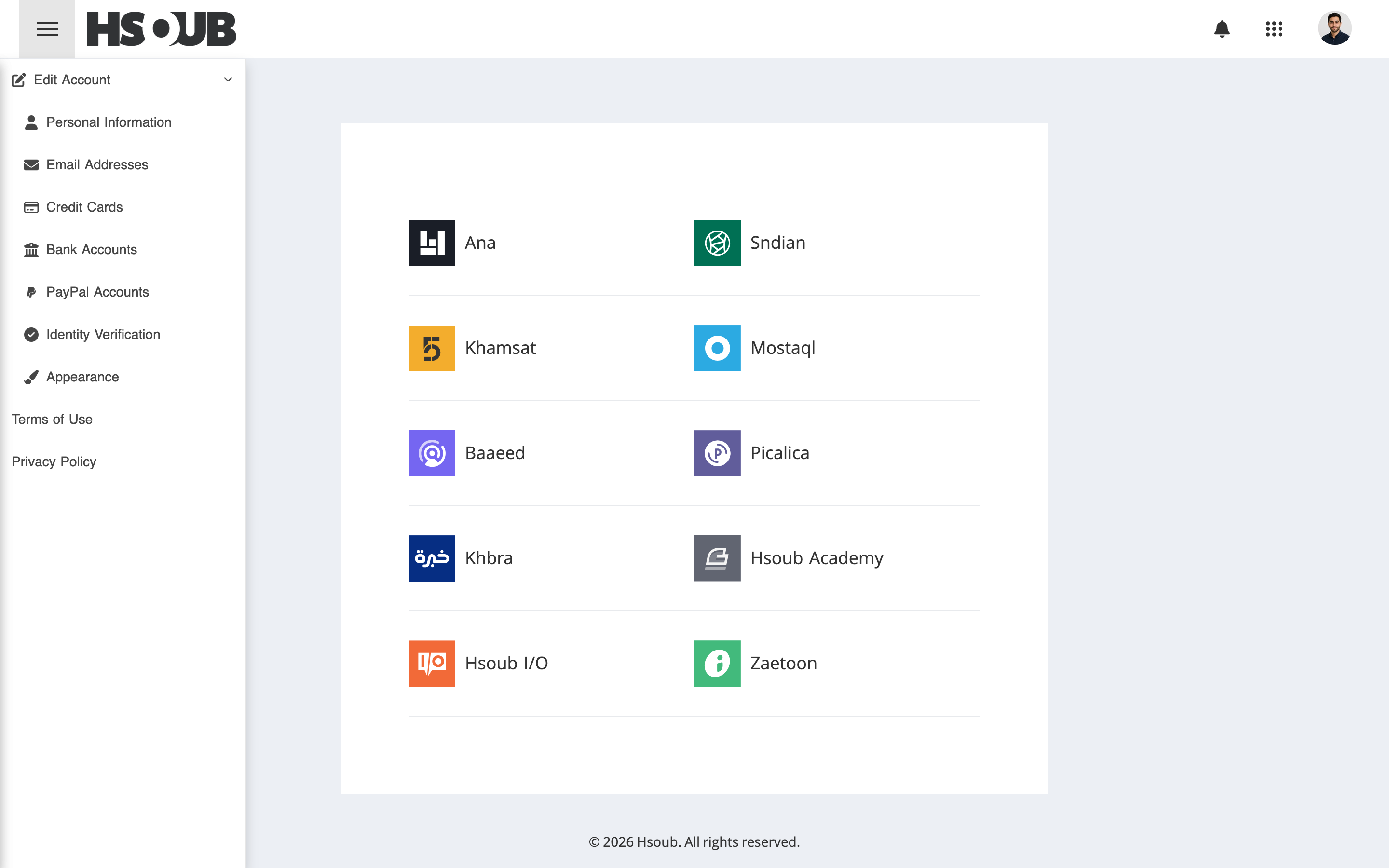
Go to Hsoub Accounts, then select Email Addresses from the sidebar.
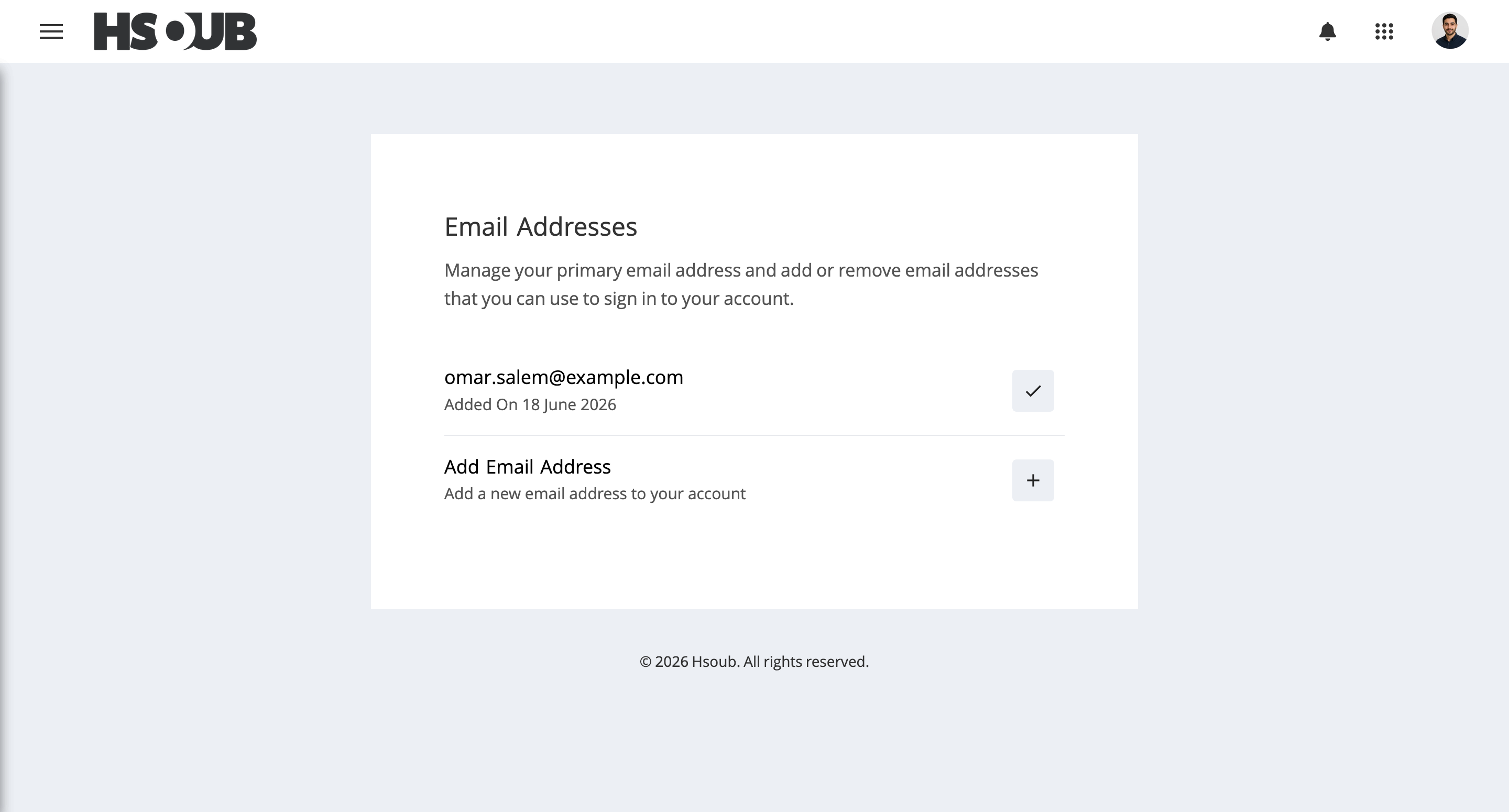
Click Add Email Address.
Enter the following information:
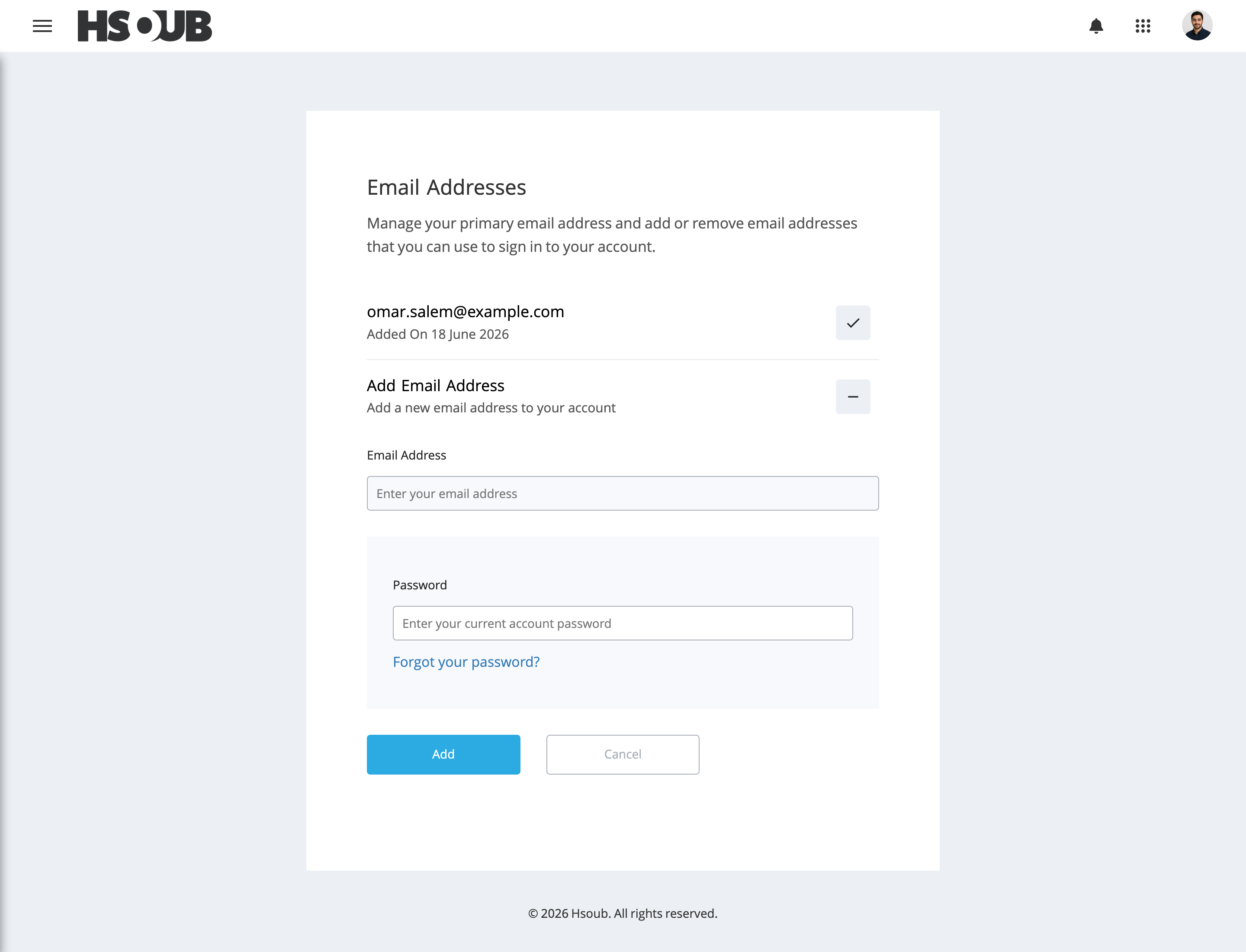
- Email Address: Enter the email address you want to add.
- Password: Enter your current account password.
Click Add.
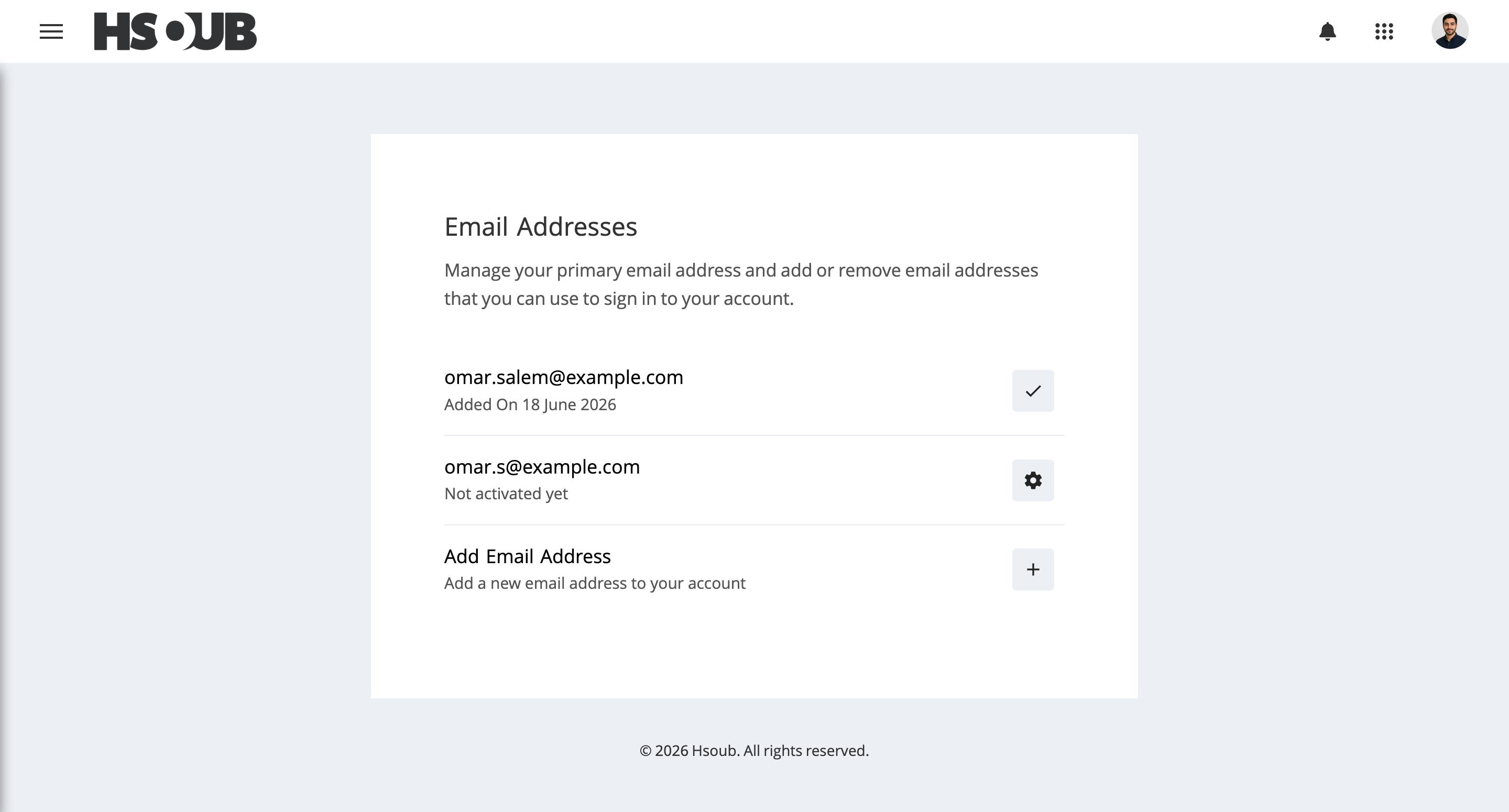
An activation email will be sent to the address you added.
Activate an Email Address
Check the inbox of your newly added email address.
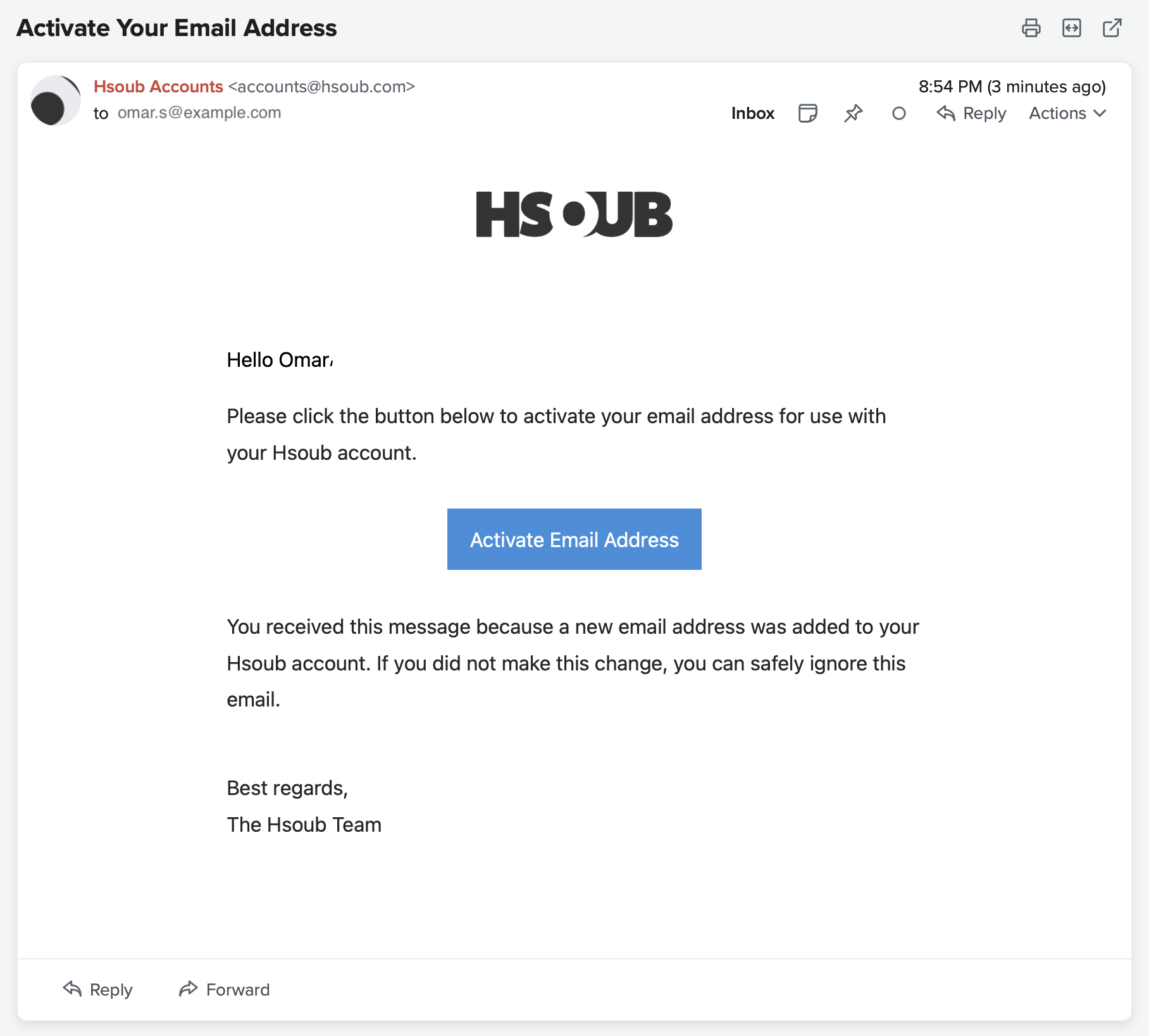
Open the email from Hsoub Accounts and click Activate Email Address.
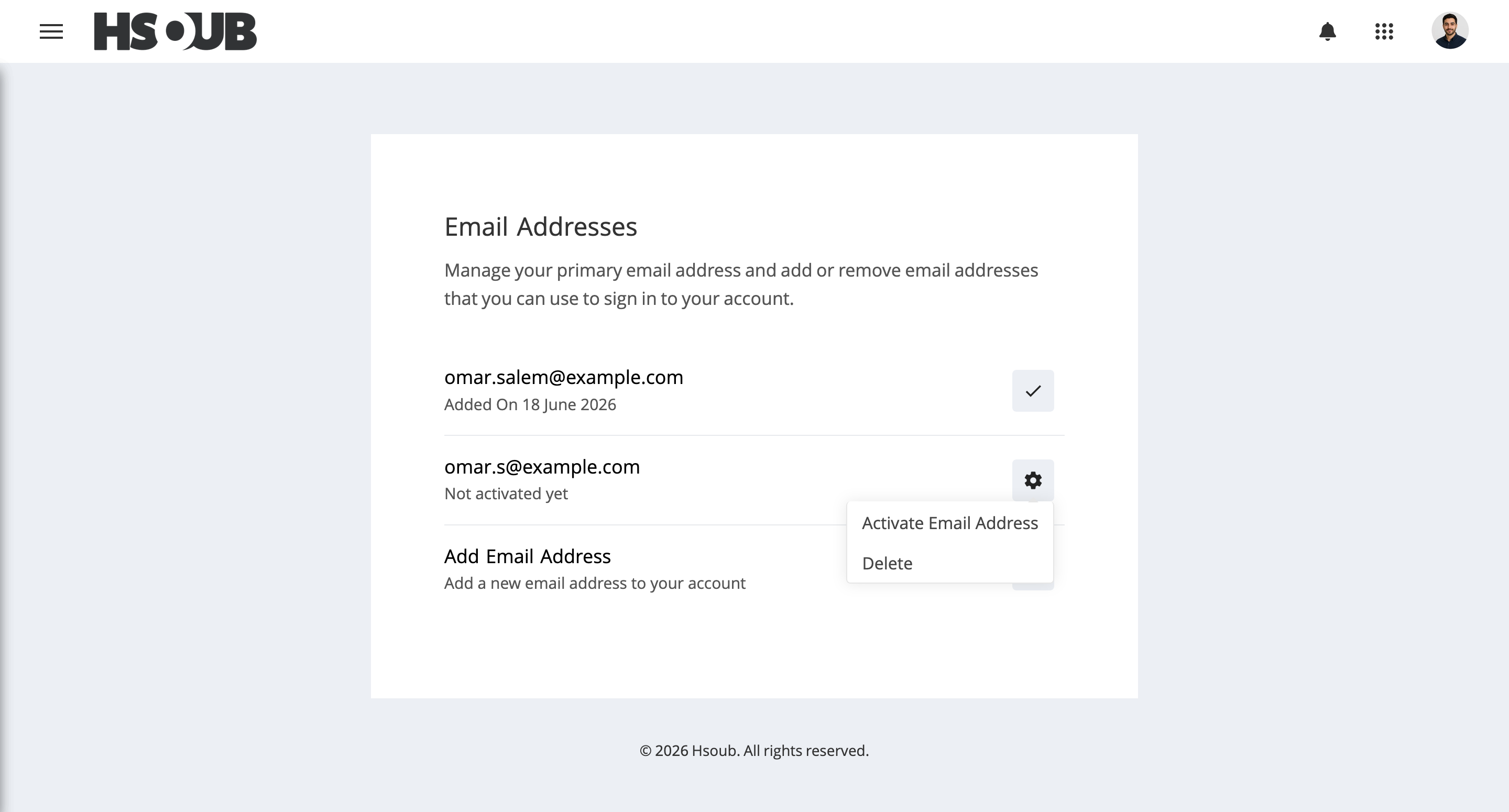
If you didn't receive the activation email, return to Email Addresses, click the settings icon next to the email address, and select Activate Email Address.
Set a Primary Email Address
Find the activated email address, click its settings icon, and select Set as Primary Email Address.
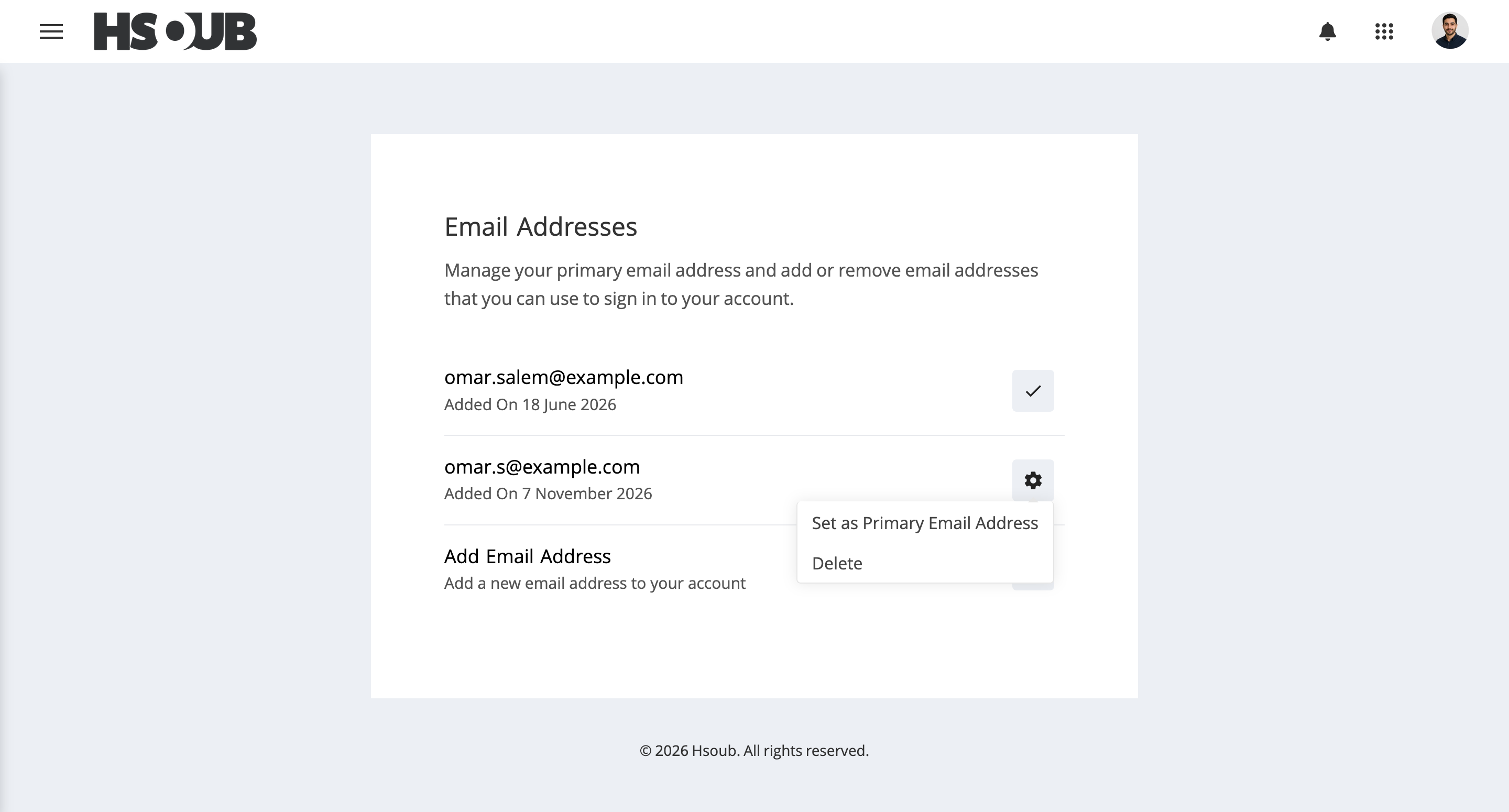
The selected email address will become your primary email address.
Remove an Email Address
Find the email address you want to remove, click its settings icon, and select Delete.
If you want to remove your current primary email address, first set another activated email address as primary.